How to add a custom webpage metadata pane?
Introduction
Metadata in a Quark document falls into three primary categories:
Direct Key-Value Pairs: Simple key-value attributes.
Groups of Key-Value Attributes: A structured collection of related key-value attributes.
Collections: A set of direct attributes or grouped attributes that can repeat as metadata.
Metadata can store various types of data, including:
Decimal
Integer
String
List of values
Boolean (True/False)
Date (Format: YYYY:MM:DD)
DateTime (Format: UTC format:YYYY-MM-DDTHH:MM:SSZ)
Time (Format: HH:MM:SS)
When interacting with metadata, Quark provides the information as a monolithic JSON object for the selected document, section, or element (where applicable).
Configuration
Folder structure
Create the following folder structure under the ‘qaservice’ directory on S3:
				qaservice/
└── ext/
               └── feature/
                              └── meta-adapter-plugin/
                                             └── meta-adapter-plugin/
Adding the icon
Place an icon (e.g., ‘customWeb.svg’) in the ‘meta-adapter-plugin’ folder:
				qaservice/
└── ext/
               └── feature/
                              └── meta-adapter-plugin/
                                             └── meta-adapter-plugin/
                                                            └── customWeb.svg
The icon name can be customized but must match the value of ‘iconUrl’ in the ‘manifest.json’ file.
Creating the manifest.json file
Place the ‘manifest.json’ file under the ‘meta-adapter-plugin’ directory:
				qaservice/
└── ext/
               └── feature/
                              └── meta-adapter-plugin/
                                             └── manifest.json
Place this ‘manifest.json’file under folder qaservice/ext/feature/meta-adapter-plugin:
Manifest File Structure:
				{
               "version": "0.0.1",
               "modules": [
                              {
                                             "type": "qa-meta-extensible-pane",
                                             "displayName": "DISPLAY_NAME_OF_PANE", <!-- DISPLAY_NAME_OF_PANE is a variable. Need to be replaced -->
                                             "name": "PANE_NAME", <!-- PANE_NAME is a variable. Need to be replaced -->
                                             "iconUrl": "PANE_ICON_NAME", <!-- PANE_ICON_NAME is a variable. Need to be replaced -->
                                             "frameUrl": "WEBAPP_URL", <!-- WEBAPP_URL is a variable. Need to be replaced -->
                                             "position": "right",
                                             "config": {
                                                            “applicableMeta”: [“ARRAY_OF_META_TYPES_TO_SEND_TO_WEBAPP”]<!-- “ARRAY_OF_META_TYPES_TO_SEND_TO_WEBAPP” is a variable. Need to be replaced -->
															},
									         "frameAuthConfig": {
                                                         "httpMethod": "METHOD_TYPE", <!-- METHOD_TYPE is a variable. Need to be replaced -->
                                                           "authTokenUrl": "AUTH_TOKEN_URL", <!-- AUTH_TOKEN_URL is a variable. Need to be replaced -->
                                                            “requestHeaders”: { // headers in key-value pair}

                                        "requestBody": { // request body according to the request. }
                              }
                              }
                   ]
       }
Note: In requestHeaders and requestBody user can specify the variables with ${}. The variables entered with ${} will be replaced from environment variables of qaservice.
For example, if you specify
				requestHeaders: {
               “x-api-key”: “${env.variable}”
}
Then env.variable should be present in environment variables of qaservice and it will be replaced with its value.
Same can be done in requestBody also.
You can host this sample webapp at your end: Sample Webapp Code
Sample manifest. Json file: manifest.json
Note: In ‘manifest.json’ pane configure should be of type: “qa-meta-extensible-pane” to make plugin work.
Configuring qa-config.json
Add the following entries in the ‘qa-config.json’ file at the root level to configure the plugin for the desired content type:
Config:
“panes”: [ “meta-adapter-plugin”, “preview”, “trackChanges”, “notes”, “comments”, “properties”, “workflow”, “history”, “link”, “navigation”, “analytics”, “quarky” ],
“extensions”: [ “meta-adapter-plugin” ]
Sample qa-config: qa-config.json
Restart qaservice after these changes.
Accessing the Custom Webpage Metadata Pane
After saving the configuration, launch the QPP NextGen platform and go to Quark Author by opening any existing document or you can also create a new document. The newly configured metadata pane will appear in the Apps pane of Quark Author in the order you’ve defined in the manifest.json file.
Only the metadata options specified in the manifest.json file will be shown in the Custom Webpage Metadata Pane. The arrangement of these options will reflect the order defined in the configuration.
Important Considerations
- The Custom Webpage Metadata Pane will only be visible for the specific document type for which it has been configured. For instance, if configured for a Smart Document, it will not display for Business Documents.
- Values entered in this pane will be carried over to the Properties tab located within the Metadata section of the Apps pane.
Troubleshooting
If the Custom Webpage Metadata Pane doesn’t appear:
- Check that the JSON files are saved with the correct syntax.
- Ensure you’re accessing the document type for which the pane was configured.
Sample JSON Structure from Quark
Fetching Metadata in JavaScript
Sample JavaScript Method to Retrieve an Attribute
				function getAttribute(attrName, metaInfoJson) {
               return metaInfoJson.items.find((item) => item.name === attrName);
}
Parameters
- attrName: The name of the attribute to fetch.
- metaInfoJson: The JSON context in which to search for the attribute.
Fetching Metadata at Different Levels
Fetch First-Level Metadata
First-level metadata refers to attributes directly set at the root level of an element or document.
Method Call:
getAttribute(“keywords”, metaInfoJson);
Input:
attrName: “keywords”
metaInfoJson: extract meta key from JSON structure received in “JSON Sample.json”
Response: JSON data from keywords.json (attached). keywords.json
Example Use Case: Attributes like analyst, article permissions, and focus tags fall under this category.
Fetch a Collection (e.g., “contribs”)
Collections are repeatable metadata structures.
Example Use Case: Recommendations fall under this category.
Method Call:
getAttribute(“contribs”, metaInfoJson);
Input:
attrName: “contribs”
metaInfoJson: JSON structure from “JSON Sample.json”
Response: JSON data from contrib.json (attached). contrib.json
Fetch an Attribute from a Collection
A collection may contain multiple members.
Iterate over the members key in the collection’s response to extract attributes.
Method Call:
getAttribute(“desiredAttribute”, contribJson);
Input:
attrName: Name of the desired attribute.
metaInfoJson: The JSON extracted for the specific collection (e.g., contrib.json).
Fetch a Group from a Collection
Collections can contain groups, requiring iteration over the members key to extract grouped attributes.
Method Call:
getAttribute(“permissions”, contribJson);
Input:
attrName: “permissions”
metaInfoJson: JSON structure extracted from the collection.
Response: JSON data from permissions.json (attached). permissions.json
Fetch an Attribute from a Group
Once a group is extracted, fetch a specific attribute from it.
Method Call:
getAttribute(“copyrightLicense”, permissionsJson);
Input:
attrName: “copyrightLicense”
metaInfoJson: JSON structure extracted from the group.
Response: JSON data from copyright.json (attached). copyright.json
Events to be on pane load:
Note: all events will be posted throw iframe.contentWindow.postMessage(). When event coming from webapp or quark sending to webapp.
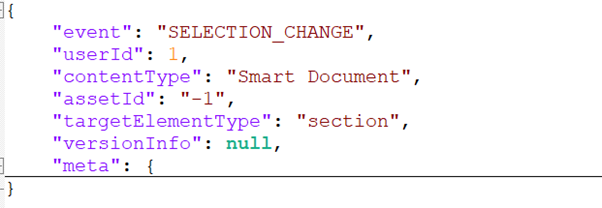
SELECTION_CHANGE: Quark will send SELECTION_CHANGE event on every selection change in author when the pane will be open.
Events to be received from webapp:
Meta Related Events:
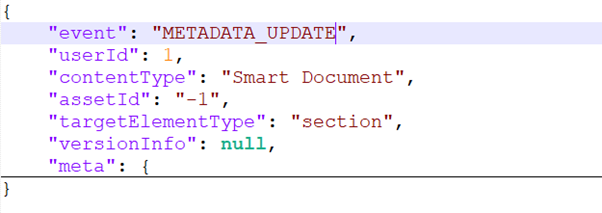
METADATA_UPDATE: When webapp will send data back after making any changes in meta. The webapp need to send this event.

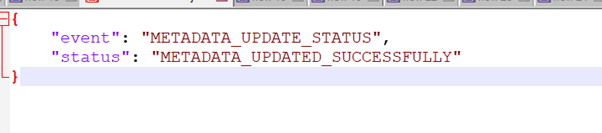
METADATA_UPDATE_STATUS: When trying to set data received from the webapp.
In case of success post this to webapp:
In case of failure post this to webapp:

Token Related events:
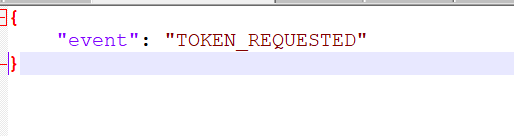
Note: Need to open the webapp pane once and then the below events need to be sent by webapp i.e. TOKEN_REQUESTED
TOKEN_REQUESTED: When webapp will request a token from the API and secret provided.
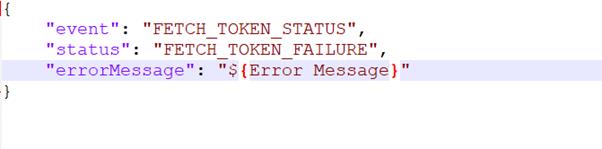
FETCH_TOKEN_STATUS: When token is to be sent back to webapp after executing API
If API execution is successful post this to webapp:
If API execution fails post this to webapp: